
Homelab Automation
From chaos to order with Renovate & Gitlab CI/CD
I think everyone self-hosting eventually has been there. You’re setting up your first homelab, the excitement is high,
and your compose.yaml is littered with the most dangerous word in DevOps: :latest.
It works perfectly until it doesn't. One morning you wake up, look at your watchtower
service updating everything, and your entire stack in Portainer is a smoking crater...
I realized that I had to stop being lazy and start treating it like some kind of production.
Here is how I moved from beginner’s luck to a fully automated, GitLab CI/CD and Renovate pipeline.
The Root Cause: The "Latest" Trap
The mistake wasn't just using :latest; it was the lack of intent. Using generic tags means you never have to pay attention.
To have a more controlled setup, I needed three things:
- Pinning: Total control over what version is running (e.g., sticking to 3.6 until I’ve personally verified the upgrade path).
- Visibility: To be notified when a new version exists without manually checking dozens of GitHub repositories.
- Automation: A way to deploy those updates that didn't involve me manually SSH-ing into a terminal for every minor patch. But keeping the option just in case...
A Solution: Renovate
I was already tracking docker compose and configuration for services in a private repository in my gitlab.com account. It seemed a perfectly decent way to keep track of configuration, and also some documentation by service in a few Markdown files. In the end, it turned out as a perfect first step to work on GitOps and server admin tasks.
I also read about renovate, and it's Gitlab integration. Basically, it can scan my homelab repository and look for outdated Docker tags. Instead of just breaking things, Renovate opens a Merge Request. It’s like a librarian handing me a book and saying, "Hey, there's a new version. I've gathered the release notes and changelogs for you (if you add a GitHub API token). Do you want to merge this?" This allows for Intentional Upgrading. If I see an update for a critical service, I can read or search for breaking changes before clicking Merge.

Renovate GitLab Pipeline in practice
Fortunately, Gitlab offers a built-in CI/CD pipeline that includes Renovate to simplify the configuration. First,
you need to produce an access token with scopes are read_api, read_repository and write_repository for renovate.
You can do this in Gitlab's UI under Settings > Access Tokens. After that, add a variable to your Gitlab CI/CD pipeline
named RENOVATE_TOKEN and set it to your token. Then, you just need to add a few lines of
configuration in your .gitlab/renovate.json file:
{
  "$schema": "https://docs.renovatebot.com/renovate-schema.json",
  "extends": ["config:base"],
  "enabledManagers": ["docker-compose"],
  "assignees": ["YourGitlabUsername"],
  "labels": ["dependencies", "renovate"]
}
and add jobs to your .gitlab-ci.yml file:
include:
  - project: 'renovate-bot/renovate-runner'
    file: '/templates/renovate-config-validator.gitlab-ci.yml'
  - project: 'renovate-bot/renovate-runner'
    file: '/templates/renovate.gitlab-ci.yml'

renovate:
  stage: renovate
  variables:
    RENOVATE_EXTRA_FLAGS: --autodiscover=false
    RENOVATE_ALLOW_POST_UPGRADE_COMMANDS: "true"
    RENOVATE_REPOSITORIES: $CI_PROJECT_PATH
  rules:
    - if: '$CI_PIPELINE_SOURCE == "schedule"'
Simple right ? The last piece is how you want the pipeline to run. Here as you can see, I decided to go for a schedule that you can add in your project's CI/CD menu. But obviously, you could set it up on push, or on a manual action in the UI.
Wait, how do I update my server now ?
Obviously, merging things on Gitlab doesn't make it, at least not at the automation level of watchtower. With it, I had nothing to do. My goal is to have better control but not at the cost of laziness... Here again Gitlab will come to the rescue.
Makefile - Single Source of Truth
I decided to use a Makefile as source of truth, which is a common practice. It keeps the deployment configuration in one place, making it easier to manage and maintain. Here's an example of what it might look like:
SERVICES = traefik authentik nextcloud jellyfin # whatever you have...

pull:
    @echo "--- Synchronizing with GitLab (Hard Reset) ---"
    git fetch origin main
    git reset --hard origin/main

update-%:
    @echo "--- Updating service: $* ---"
    @cd $* && docker compose pull -q
    @cd $* && docker compose up -d --remove-orphans --wait
Note: Using git reset --hard ensures the local state never drifts from the repo.
With this, updating a service is just a matter of running make pull and sudo make update-<service_name>.
Easy, quick and efficient. After any update on a compose.yaml, I have to ssh into the server and
run make commands. It is rather secure because I control the access to the server and the ssh ports
are not open thus I can log in only locally via my ssh key. My docker install is requiring sudo as well so at this point,
everything seems fine.
But obviously, it's not automated ! And as I understood while trying to automate this process, there are some challenges regarding security.
The Trade-off: Security vs. Convenience
To further automate the updating process, I planned on using a Gitlab runner
installed on the server that executes the make commands on my server.
I'll explain the runner configurations later but let's first discuss the security implications of this approach.
Executing any docker command on my server requires sudo. This is a quite normal and secure configuration, but it makes the automation process harder.
It seems there are essentially 3 options to mitigate this:
- Run Docker commands as a non-root user: adding the
gitlab-runneruser to the docker group and running Docker commands as that user. - Run Docker in rootless mode: running Docker without root privileges. This is a more secure option but requires some additional configuration steps.
- Run Docker with root privileges: running Docker normally, but allow the connection of the gitlab.com runner via ssh and handle secrets there.
This is always the same dilemma: Security vs. Convenience.
Giving a user access to the Docker socket is generally considered a security risk, as it allows to execute arbitrary commands with elevated privileges. For more details on the security risks see the Docker documentation. If the GitLab instance or the runner is compromised, the attacker has a path to the host in this case.
Why I chose it anyway: For a homelab, I prioritized minimizing the network attack surface. By using a local shell runner, the server doesn't need to expose SSH to the wider network or manage external credentials. The runner stays inside the house, pulling instructions down from GitLab rather than having GitLab push them into my server. It’s a calculated risk: I traded "Internal Privilege Escalation Risk" for "External Network Exposure Risk."
Gitlab Runners
To bridge the gap between a "Merge" button on GitLab.com and your local terminal, you need a GitLab Runner acting as a local agent. Since we decided on a shell-based approach to trigger our Makefile, here is how to get it running:
First, install the runner on your server following the official GitLab documentation. Once installed, you need to link it to your project:
sudo gitlab-runner register
During the prompt:
- GitLab Instance URL: this is https://gitlab.com/ (unless you are self-hosting GitLab).
- Registration Token: Grab this from your project under Settings > CICD > Runners.
- Executor: I chose shell. This allows the runner to execute commands directly on the host's terminal.
By default, the runner creates a system user named gitlab-runner. For our Makefile to work without manual intervention, this user needs specific permissions. To allow the runner to manage containers without sudo, we need to add it to the docker group:
sudo usermod -aG docker gitlab-runner
This is the unsafe decision we discussed earlier.
The runner also needs a workspace. While GitLab CI usually clones the repo into a temporary build folder, I also wanted to be able to manually deploy, just in case. I am managing the local git repository into my home folder, so I needed to grant some access permission to the gitlab-runner user to my directories. This allows the runner to clone the repo and run the make commands.
The Workflow in Action
Now, the "New Version" flow looks like this:
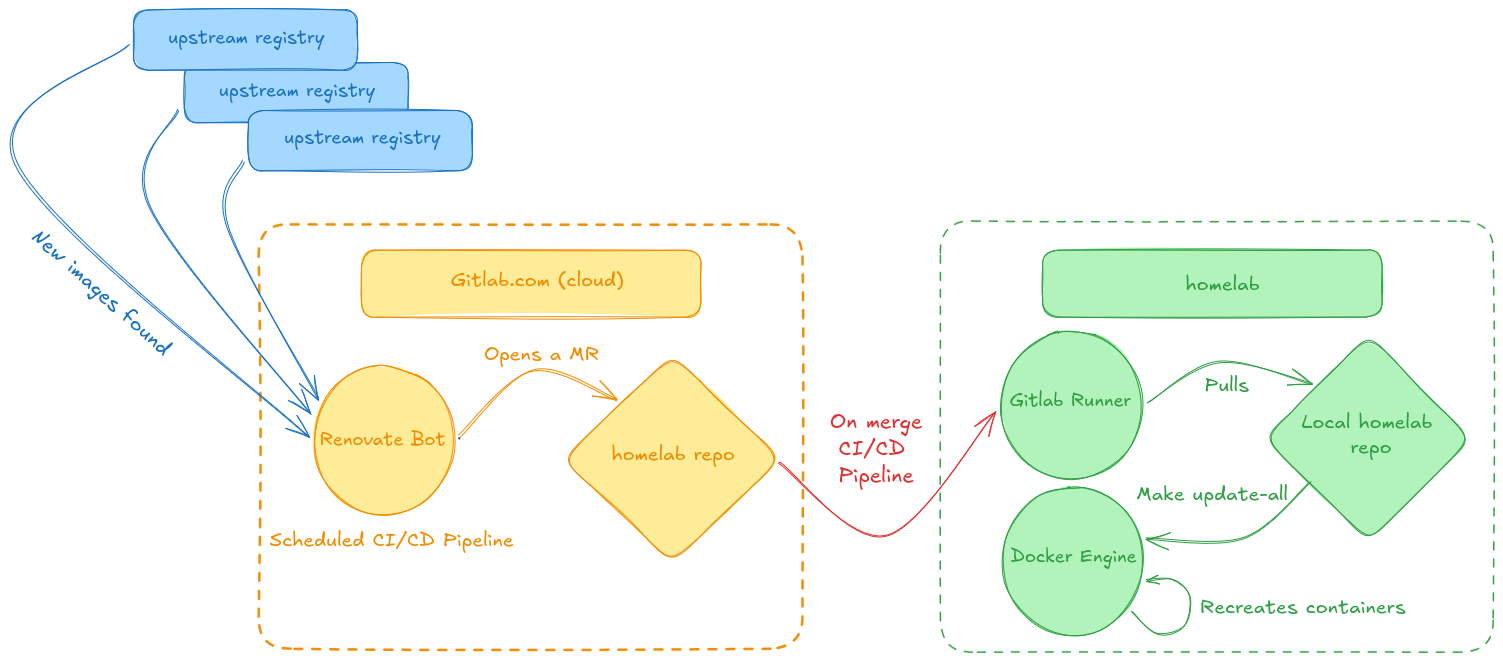
- Renovate detects an update and opens a GitLab MR.
- I review the Changelog directly in the MR description.
- I click Merge.
- The Local Shell Runner triggers a job that runs
docker compose pull && docker compose up -dvia make commands. - Everything is updated in seconds, with a full audit trail in Git.
Conclusion
Moving to this setup felt a bit like growing up. It’s not just about the automation; it’s about the peace of mind that comes with
a controlled process. The ability to roll back changes quickly and easily is invaluable.
If you are tired of your homelab breaking behind your back, stop using :latest and start building a pipeline.
Your future self (who just wants things to work) will thank you.
I'll definitely have a look at the docker executor gitlab runners. It could be the missing piece that ensures the complete security of my setup. Stay tuned !

Agents, MCP, RAG, Knowledge Graphs, all open source and local
Agentic AI and MCP are the new thing in 2025. I figured it's time to try them out and share the results. Witness the rise of my AI Agent, with Web Search, Data Analysis and Knowledge Graph enhanced RAG.
The move to Vue.js
A while back, I decided to learn some JavaScript to go along my improvements on the FastAPI backend side. I started a few things, never finished. But trecently I got back into it and the result are worth sharing.